













IMessage Not Working: Sending & Receiving SMS on iPhone with Qoolline eSIM






IMessage Not Working: Sending & Receiving SMS on iPhone with Qoolline eSIM

iMessage Not Working: How to Send & Receive SMS with Qoolline eSIM on iPhone
iMessage Not Working: Sending & Receiving SMS on iPhone with Qoolline eSIM
After installing your Qoolline eSIM, you may notice that iMessage isn’t working properly for sending or receiving messages. Follow the steps below to ensure your settings are configured correctly. If issues persist, check the Qoolline eSIM Installation Guide and Connection Troubleshooting Guide to verify your setup.
Primary and Secondary Lines Setup
When you activate a Qoolline eSIM, your iPhone will create a secondary line for mobile data. This secondary line should be used only for data, while your Primary line remains your Default Voice Line for calls and SMS.
How to Set the Default Voice Line
1. Open Settings > Cellular (or Mobile Service).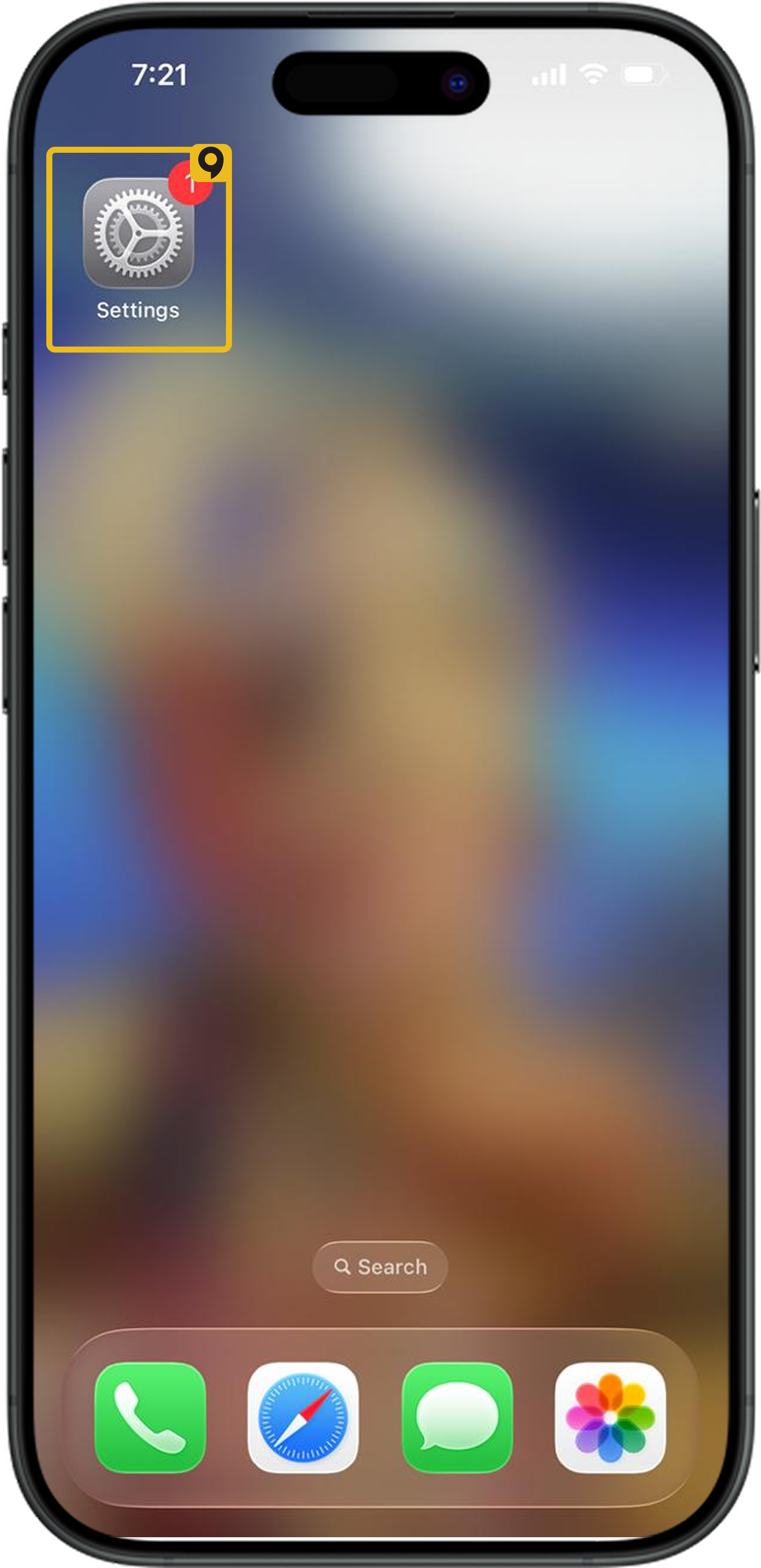
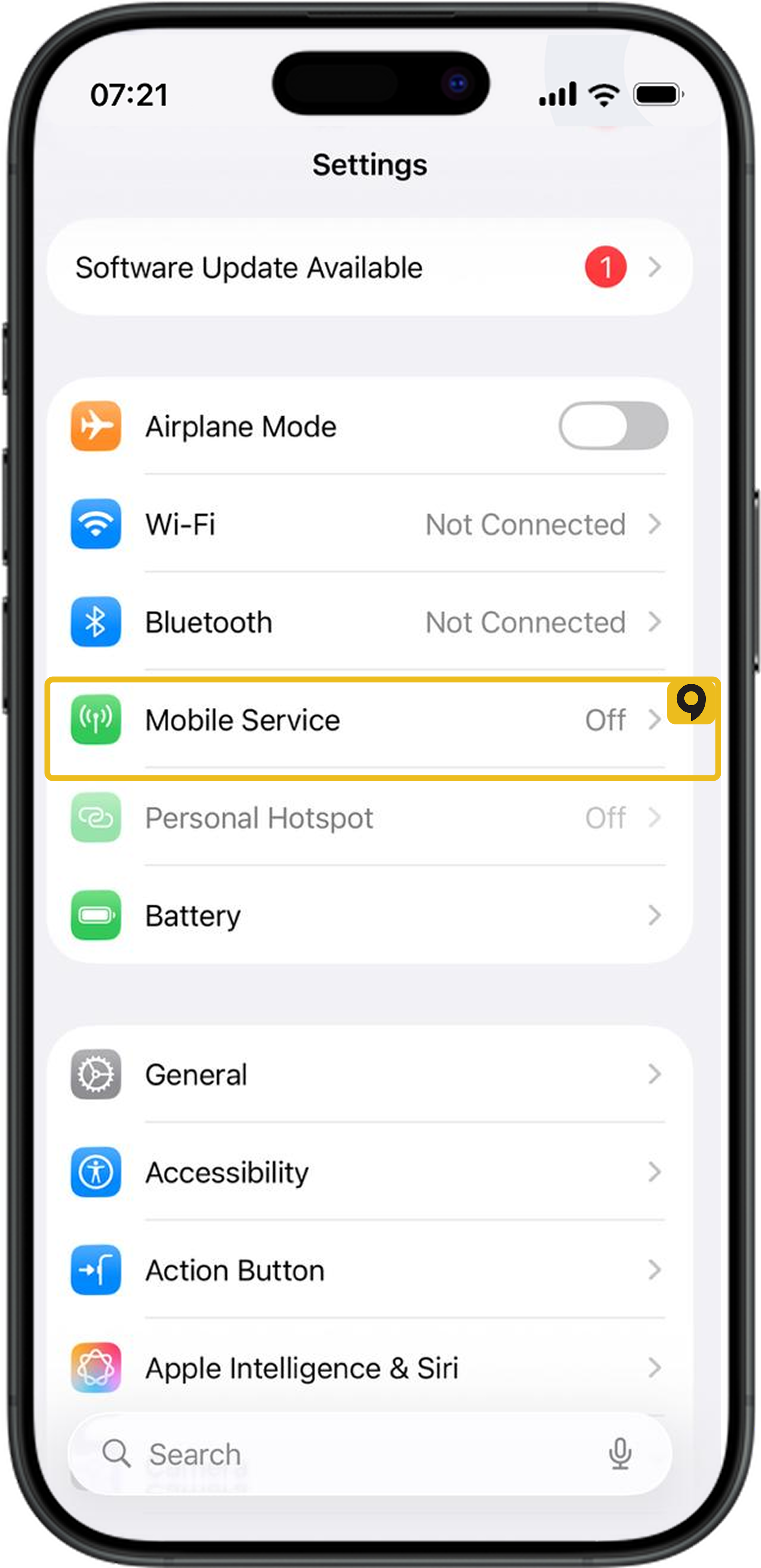
2. Tap Default Voice Line.
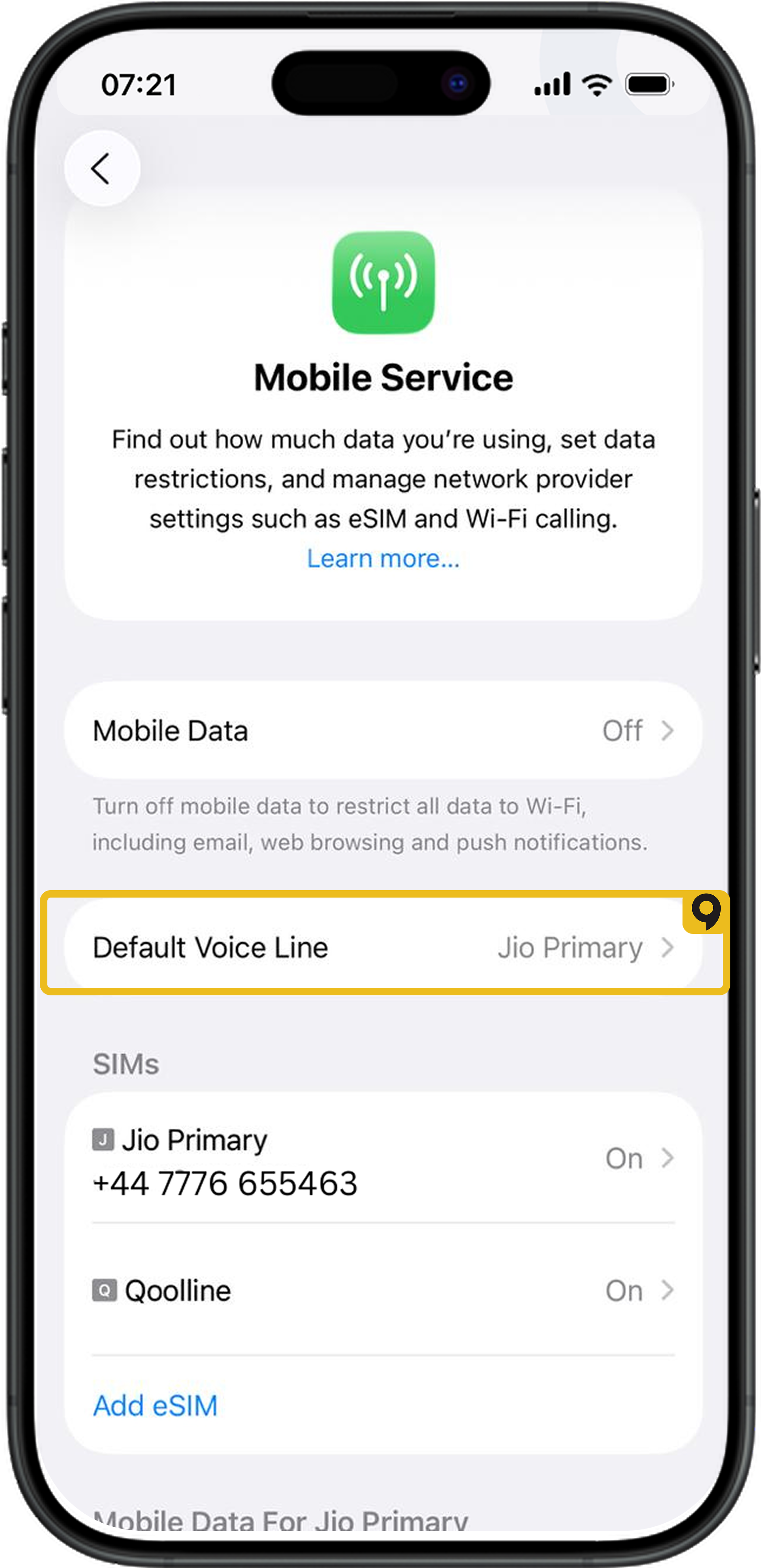
3. Select Primary, or the line with your phone number.
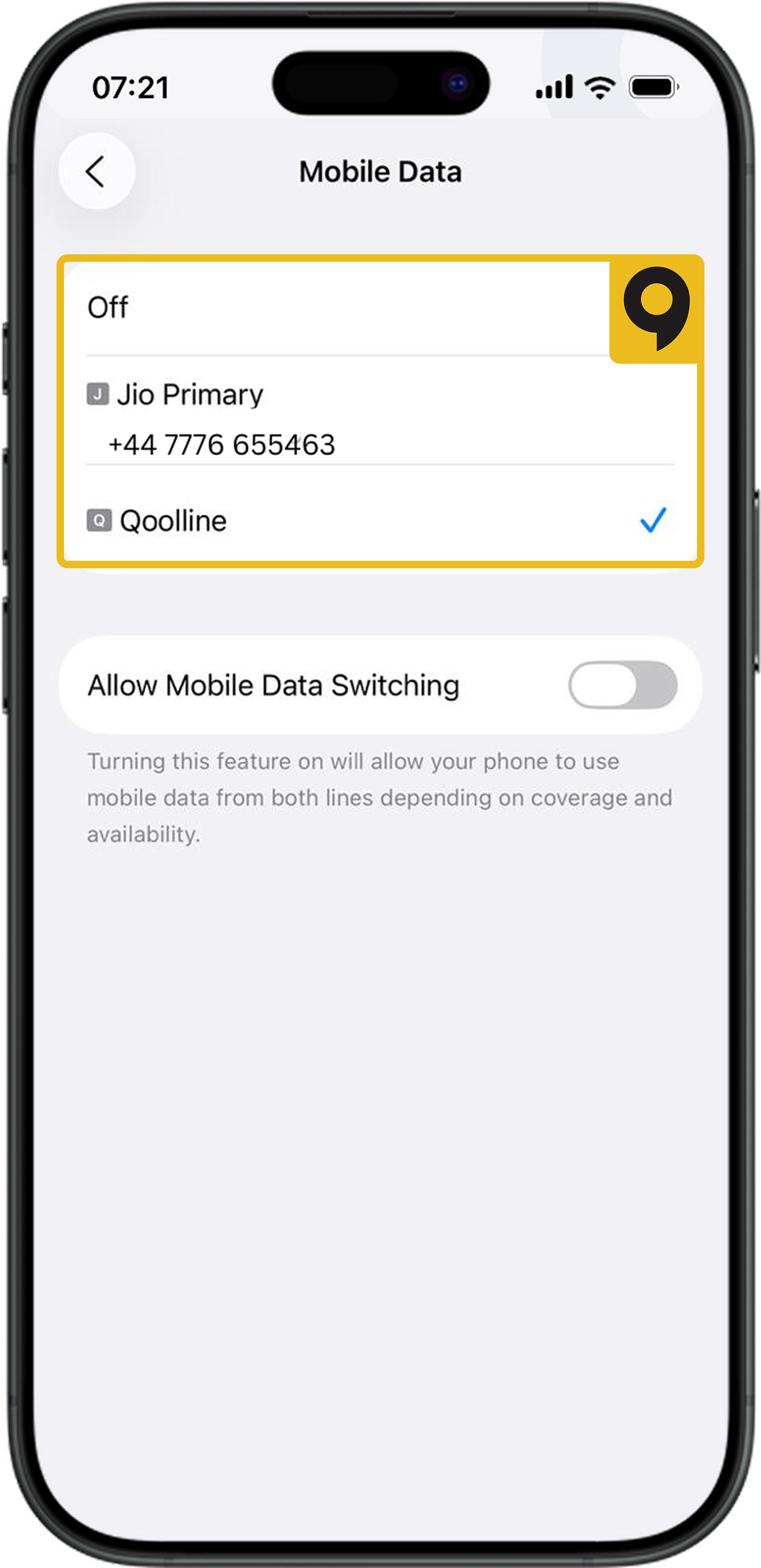
Configure iMessage Send & Receive Addresses
Since Qoolline eSIM plans do not support voice or SMS, avoid enabling the eSIM line for iMessage. If iMessage tries to use the eSIM line, messages will fail to send.
Note: You can still use the Qoolline eSIM for internet-based services like iMessage. However, voice and SMS over Wi-Fi may require carrier support, and additional fees could apply.
Set the Correct Send & Receive Addresses for iMessage
1. Open Settings > Messages (iMessage Settings).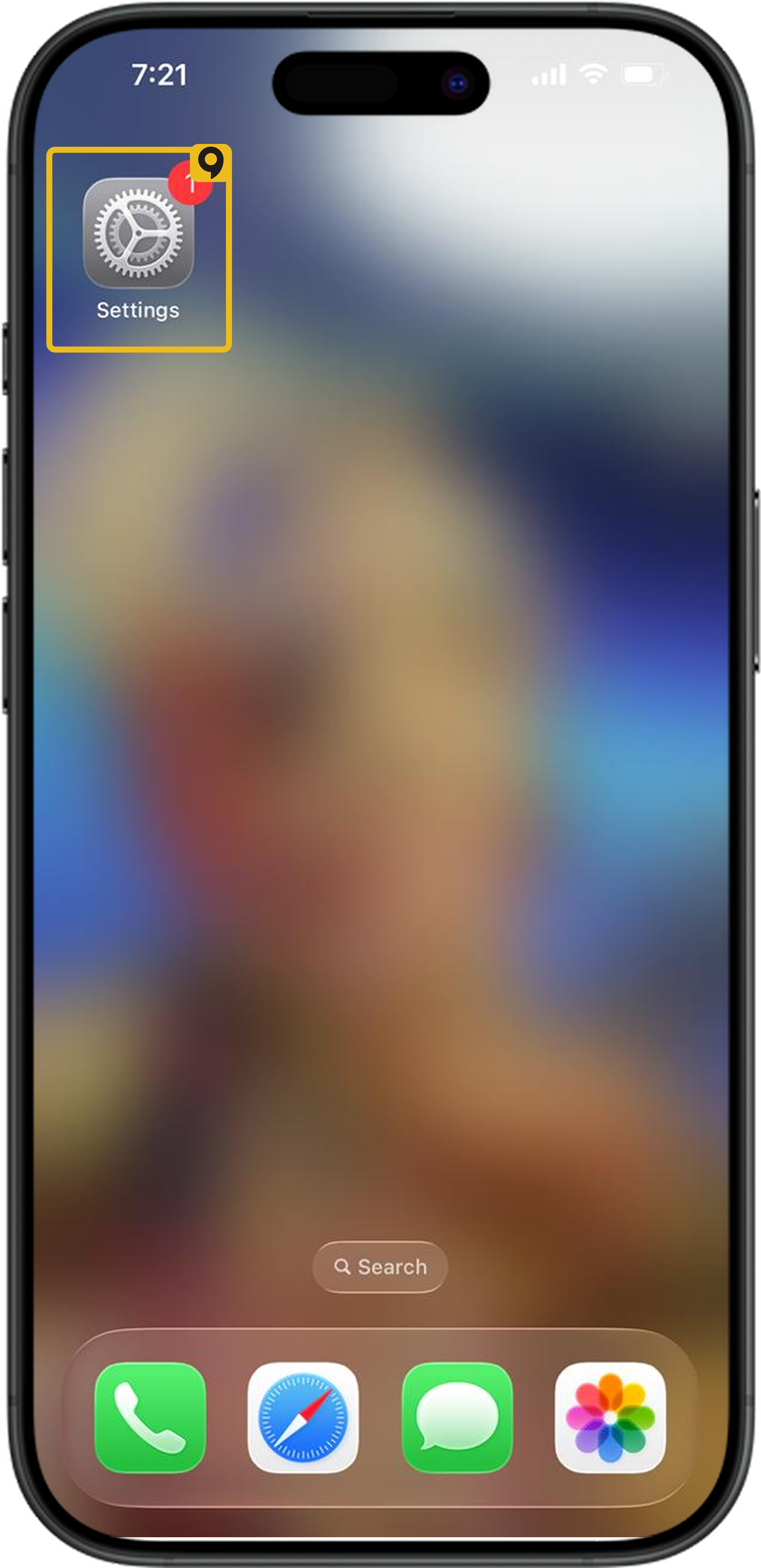
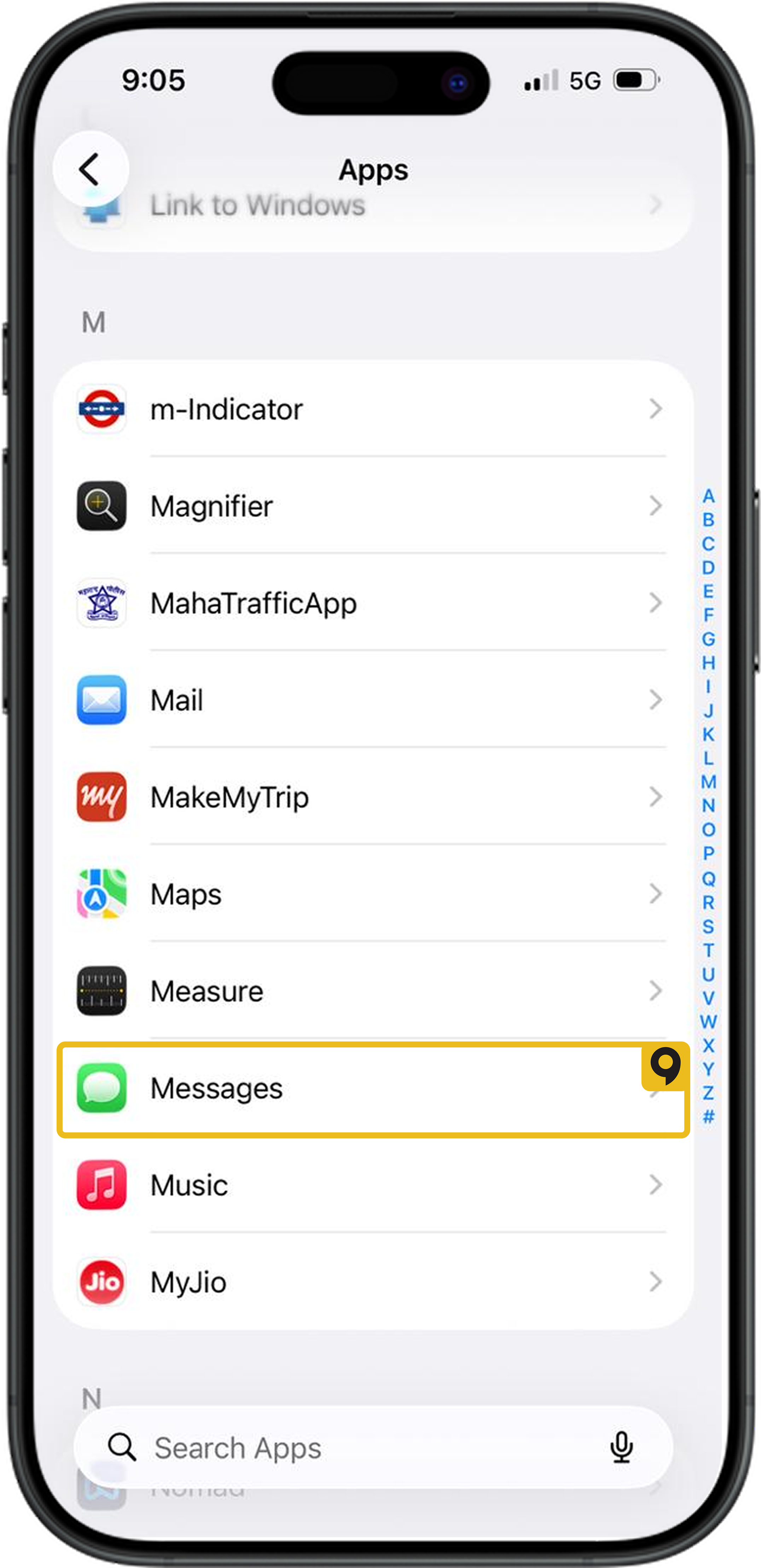
2. Tap Send & Receive.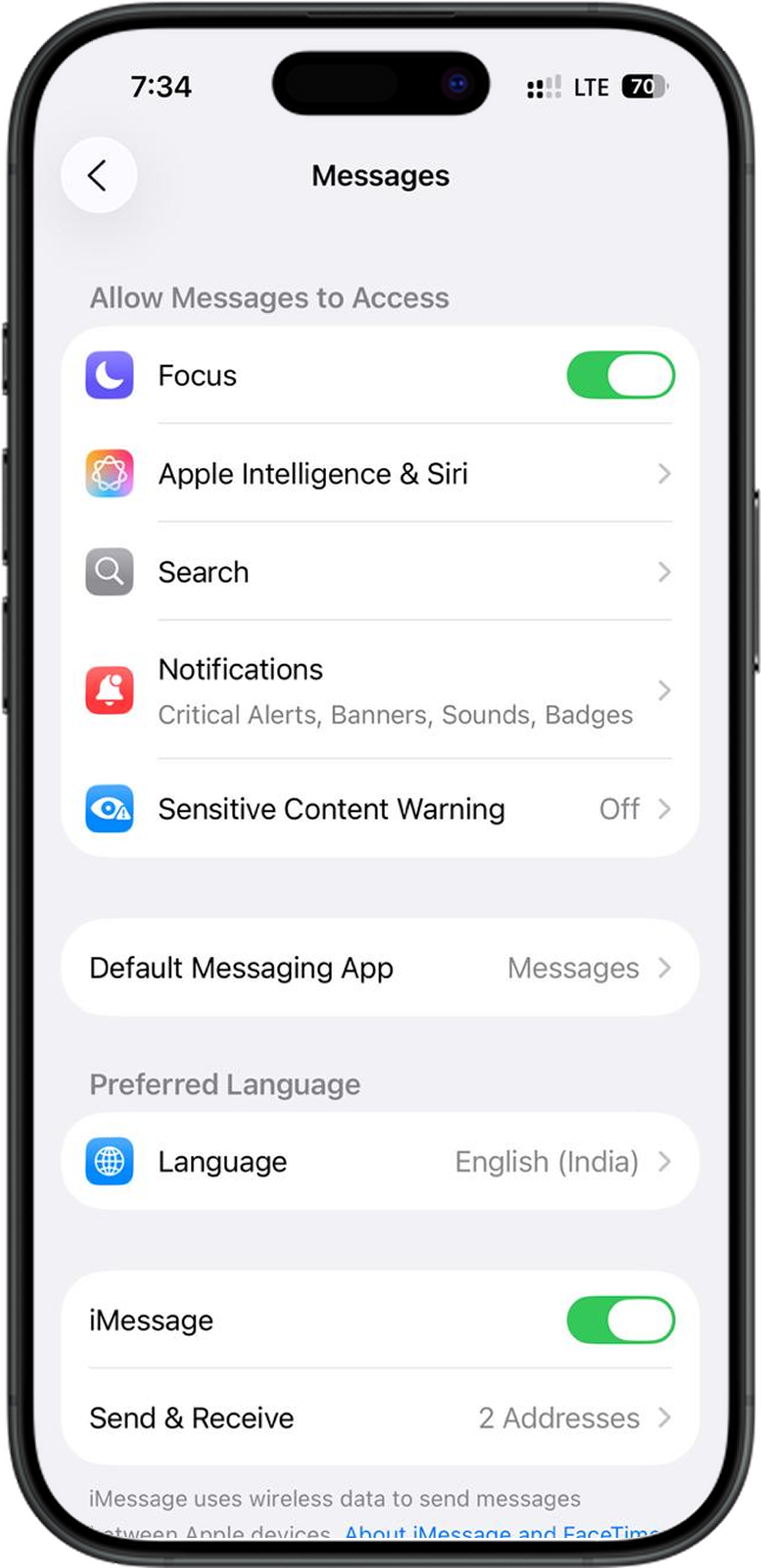
3. Enable your Primary phone number and Apple ID by placing a checkmark next to them.
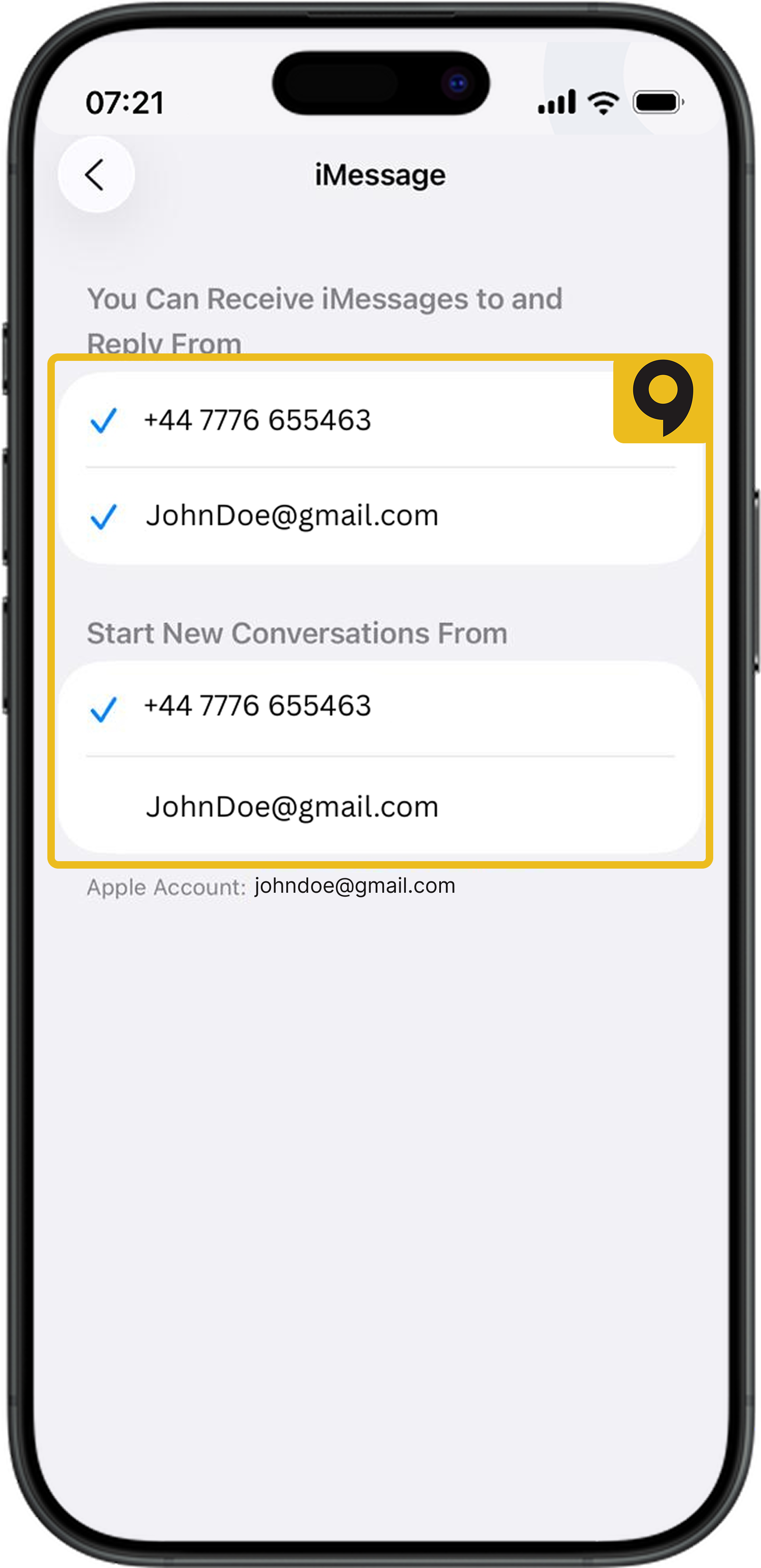
4. Disable the eSIM line (remove the checkmark).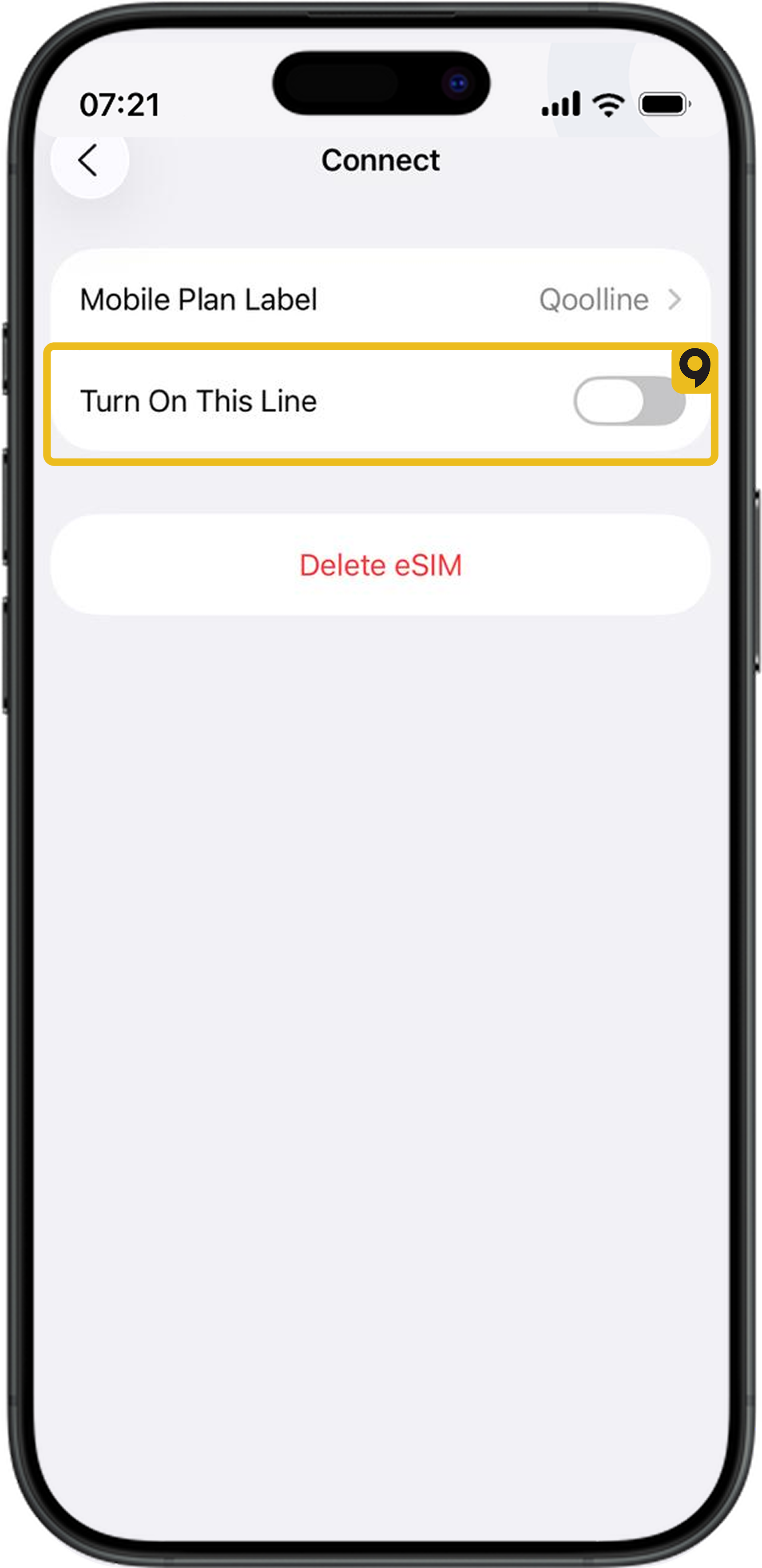
Need More Help?
If your iMessage is still not working properly, please refer to Apple’s iMessage documentation for further assistance:
Apple Support - iMessage Troubleshooting
Experiencing "Cellular Plans Cannot be Added" Error on Qoolline eSIM? Here’s How to Fix It

Learn how to resolve the "Cellular Plans From This Carrier Cannot be Added" error on your iPhone with simple troubleshooting steps for your Qoolline eSIM.
Quick Fix for 'Unable to Complete Cellular Plan Change' Error on Qoolline eSIM
Learn how to resolve the "Unable to Complete Cellular Plan Change" error for your Qoolline eSIM on iOS with quick, effective troubleshooting steps.
"This Code is No Longer Valid" Error: Quick Solutions for Qoolline eSIM Setup
Learn how to troubleshoot and fix the "This code is no longer valid" error when adding a Qoolline eSIM, with easy steps to ensure a smooth setup.